
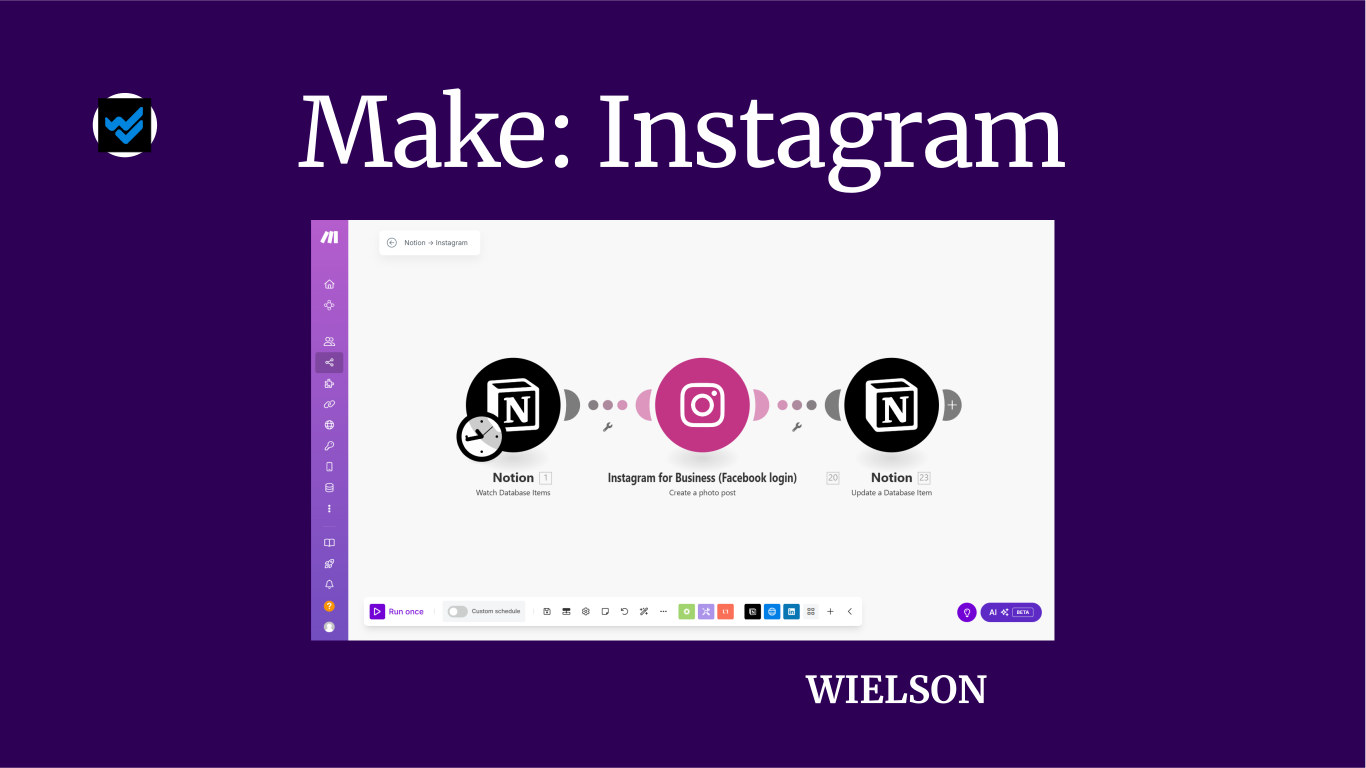
Automatically publish Instagram posts? With Make, you can set up a workflow that retrieves text and images from a database and shares them on Instagram. This allows you to create and schedule your posts in advance. In this article, we explain step by step how to create a scenario in Make to share an Instagram post based on a Notion database.
Step 1: Notion database
- Create a (free) account on Notion.
- Create a database. Type ‘/’ + ‘database’ and choose inline or full page. Give your database a title and add the following properties (fields):
- Text - the caption for your Instagram post
- Image - the image you want to post
- Status - the status of your post (e.g. To do, To post, Posted)
- Using Notion AI? You can ask Notion AI to create this database for you. Just specify what you need the database for and which properties should be included.

Step 2: Make scenario
- Create a (free) account on Make.
- Click Create a new scenario and give your scenario a name.
- Click on ‘+’ and search for Notion.
- Select the module ‘Watch Database Items’. This module monitors the database and triggers the workflow when new or updated items appear.
- Connect your Notion account and grant Make access to the database (find more info here).
- Select the correct database. The ID is the part in the URL between the slash after the workspace name and the question mark. For example: www.notion.so/wielson/1a12bc1abc12345678abcdefaa123ab1?v=1a12bc1abc12345678abcdefaa123ab1&abc=1
- Add a filter after the module so that only items with the status ‘To post’ proceed.


Step 3: Instagram module
To post an image on Instagram via Make, you need an Instagram Business account linked to a Facebook page (Meta).
- Add a new module and search for Instagram for Business.
- Select ‘Create a Photo Post’.
- Connect your Facebook account and choose the correct Instagram page.
- Select the correct field from the Notion module via ‘Properties Value’ – use the image URL as the Photo URL and the text from the Notion database as the Caption.
- Ensure your image meets Instagram’s maximum size and format requirements.

Step 4: Notion update
- Add a new Notion module.
- Choose ‘Update a Database item’.
- Change the status to Complete: Posted.
Step 5: Testing and activating
Test your scenario to check if everything works correctly. Create a test item in Notion with text and an image, and see if the post appears correctly on Instagram.
Everything working? Set your scenario to Active. Want to post at a specific time? Schedule your Make scenario accordingly.
Conclusion
With this workflow, you save time and easily automate publishing Instagram content from Notion. No more manual copying and pasting - your posts will appear on Instagram as soon as you add them to Notion.
Want to take this further? Here are some ideas:
- Automatically generate hashtags
- Add other channels (LinkedIn, Bluesky, etc.)
- Implement scheduling so posts are shared on a specific date
- Track statistics
Do you have questions or need help with this or other automations? Contact Wielson and let us help you optimise your workflows!