
Buttons in Notion can significantly speed up processes. They enable you to carry out multiple actions simultaneously. Imagine a button that, with a single click, adds a new task, updates its status, and assigns it to a team member! This is ideal for standardisation and the simple documentation of tasks and processes.
What are buttons?
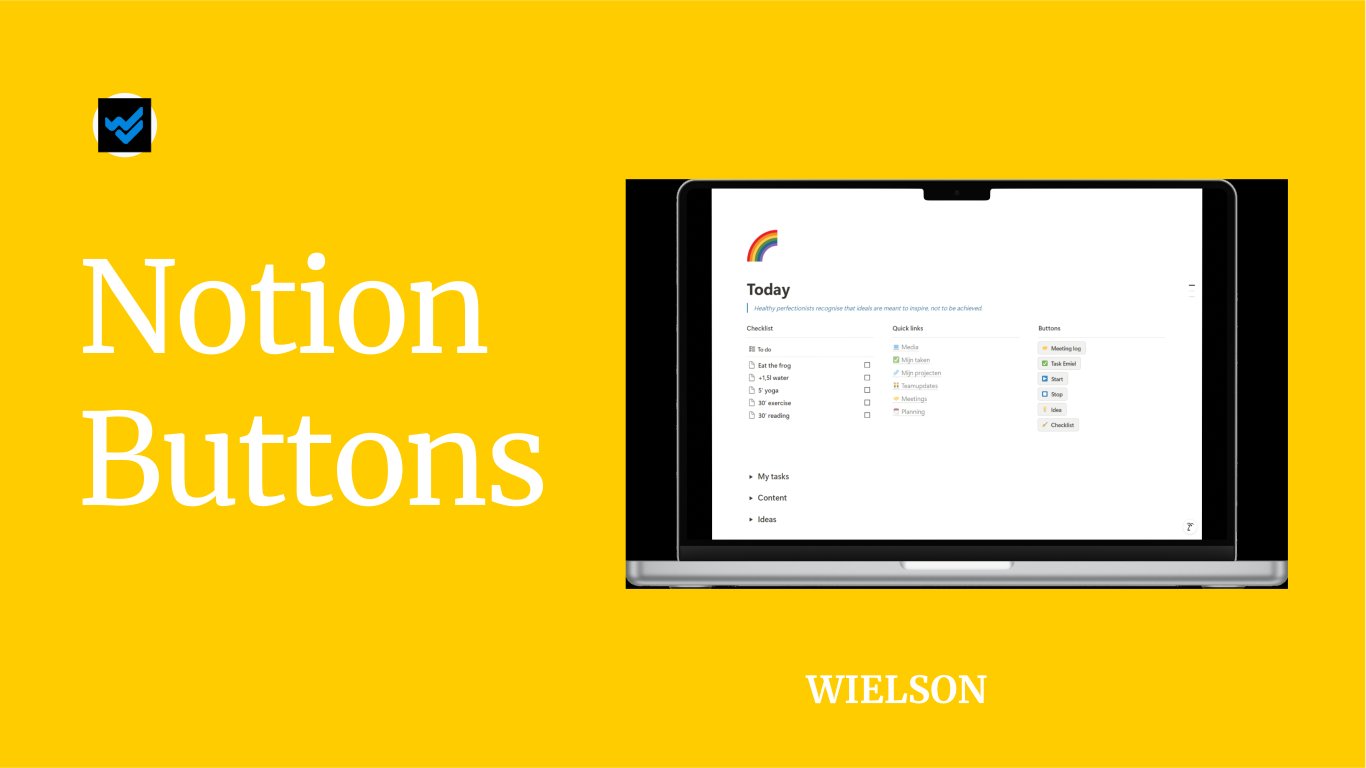
A button is a customisable button that you can add on a Notion page or as a property in a database*. Type ‘/but’ to start creating your button. Choose a title, an icon or emoji, a colour for the text and background, and select an action from the menu. Want to edit the button later? You can do so by clicking on the gear icon next to the button. Buttons save you time, as you won’t need to navigate to a specific page or database each time. Create your own private page, add buttons, and boost your efficiency.
Below, we discuss the possible actions you can perform with a button.

Add a Block
Add a block above or below the button. This could be a piece of text, a callout with a linked database*, a checklist, etc. For example, add a button to your meeting log template to quickly create a callout for notes or link a task database to the meeting.
Add a Page
This action allows you to add a new page (item) to a database*. Do you frequently create tasks for the same colleague or team? A button is perfect for doing this quickly. Do you have an ideas database? Create a button that enables you to add ideas easily, even from your mobile.
Edit One or More Pages
You can also edit existing database* pages by adding a button as a property. Create a button to set the status of a task or project to 'completed' with a single click. Or, how about a “vote” button? This allows team members to easily vote on the best team-building idea.

Send a Notification
Easily send a notification with a standard message to your team members in Notion. For instance, notify the project manager as soon as you’ve completed your tasks. It doesn’t always have to be formal either. Fancy a coffee break? Let your colleagues know with a single click that you’re free for a chat.
Send an Email
Use your Gmail account to send an email to team members or clients. You can predefine the subject, content, and recipient of your message.
Send a Webhook
With this latest feature, you can send an HTTP POST request to a webhook (a specific URL). This saves a great deal of time and can also reduce the number of operations needed in tools like Make. Notion has already shared how to optimise sharing content on social media. Other possible use cases: creating and sending an offer, invoice or NDA based on data in Notion.
Show Confirmation
Prevent accidental actions by adding a pop-up screen that asks for confirmation before proceeding (to e.g. requesting a webhook). Using a formula, you can create different pop-ups, such as a warning that a certain property wasn’t filled in when said field is empty.

Open a Page, Form, or External URL
With a single click, you can open an external webpage, a Notion Form, or another Notion page.
Send a Slack Notification
Need to quickly inform a colleague about a project? This can also be done with a button.
Define a Variable
This option is for more advanced use. It allows you to define a variable that you might frequently use in a formula or programming language. We will discuss this feature in our article on database automations.
Conclusion
These customisable buttons in Notion not only save time; they help teams work smarter by automating routine tasks. This allows teams to focus on creative work, with the reassurance that routine tasks are under control. Moreover, buttons make your experience more user-friendly, especially when working on a smaller screen, such as a smartphone or tablet.
Extra note: On 24 October, the Make with Notion event took place, where various product updates were announced and explained. Curious about the latest features? Check out the overview here.
*Called ‘data source’ per 03/09/2025 .